The details vary from church to church, but the story is surprisingly common.
A guest fills out a paper visitor card. Monday morning, someone receives a rubber-banded stack of cards to sort through, squinting to decipher scribbled handwriting. They forward prayer requests, email ministry leaders about volunteer interests, and begin checking off follow-up tasks.
Then they notice a visitor card from two weeks ago tucked under a desk.
Was anyone contacted? Did someone already follow up? Another phone call. Another email.
As they head to lunch, they glance at stacks of paper from previous weeks and think, There's got to be a better way.
Every time I hear a story like this, I think about connection Requests.
Connection Requests were built for exactly this kind of process. Whether you're onboarding volunteers, responding to prayer requests, or helping guests take their next step, they create a clear path from first interaction to final follow-up, helping teams assign responsibility, track progress, and ensure nothing falls through the cracks. It's one of the most powerful, and often underutilized, features in Rock RMS.
In this article, we'll explore both foundational configuration and creative customizations that can help your ministry reduce manual work, improve visibility, and keep requests moving forward.
Connection Core: Built-In Features You Shouldn't Ignore
The foundation of every successful Connection Request starts with a few built-in features. Before reaching for custom development, make sure you're taking full advantage of the tools already available in Rock.
Workflow Triggers
Connection Requests can launch workflows at key moments in the process. Send an email when a request is created, notify a ministry leader when a request is assigned, or automatically initiate follow-up when a status changes.
These automations help ensure that requests keep moving without relying on someone to remember the next step.
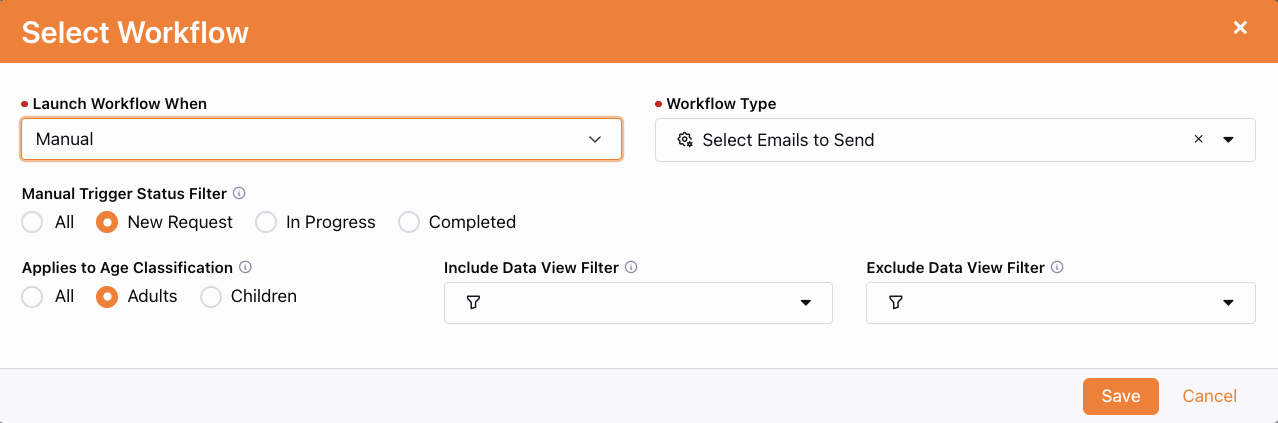 Utilizing Workflow Triggers.
Connection Request Detail Visibility
The Connection Request Detail page can surface valuable information without requiring staff to leave the request. Enable badges and other built-in indicators to quickly identify important requirements such as membership status, baptism, background checks, or signed documents.
These can be enabled on the Connection Board page in the Connection Request Board block settings. Simply select the badges you want visible.
Badges configured on the Person Profile such as membership status, campus, baptism, background check status appear automatically on the Connection Request, allowing connectors to see key information at a glance.
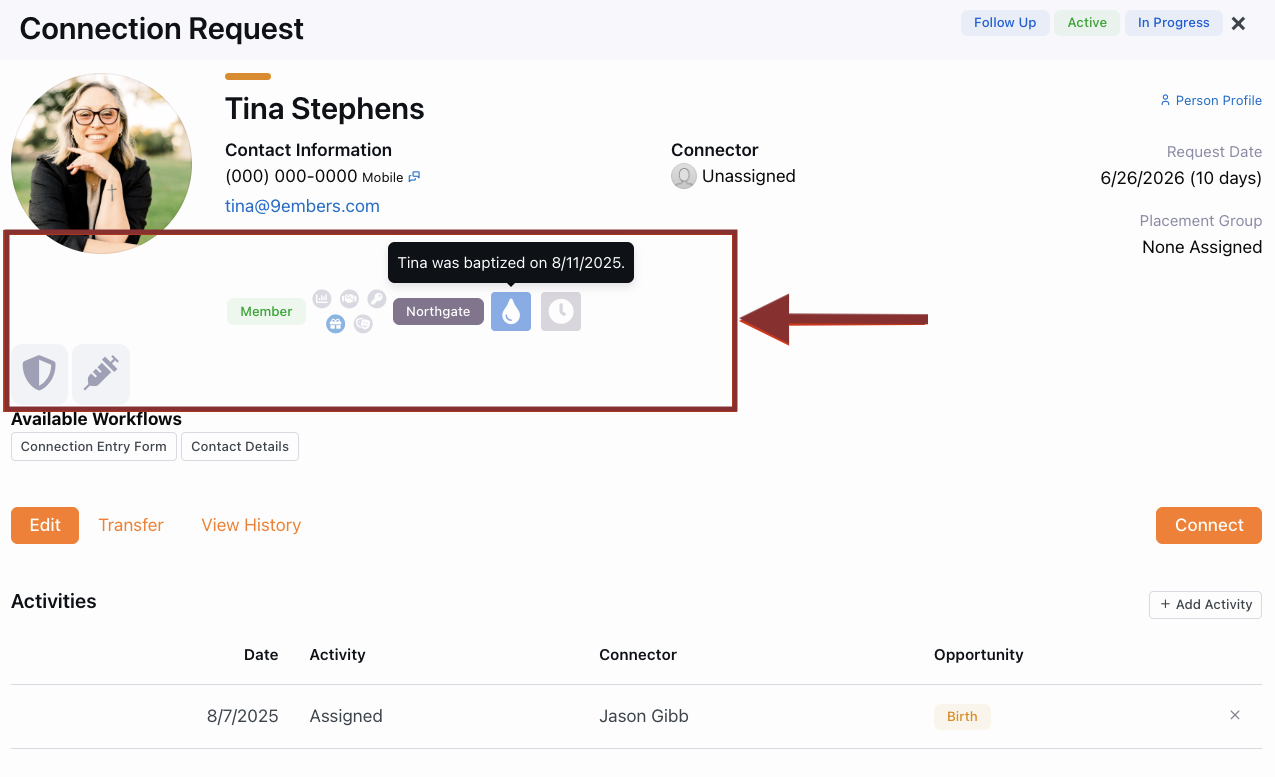 Connection Visibility with Badges.
Activities
Activities create a visible history of every interaction. Log phone calls, emails, meetings, and other follow-up steps directly on the request. Activities can also be added automatically through workflows, creating a complete timeline of engagement.
Instead of wondering who contacted someone or when a conversation took place, your team has a clear record of every touchpoint.
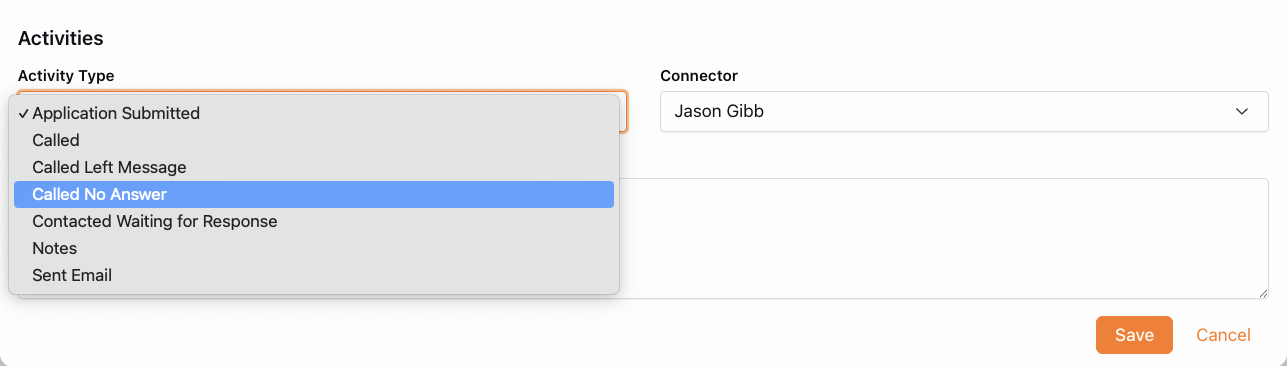 Build Activity Lists that match your process.
These core features alone can dramatically improve visibility, accountability, and follow-up consistency while reducing manual work for your team.
Connection Custom: Tailored for Your Ministry
Once your foundation is in place, it's time to tailor Connection Requests to fit your ministry processes. These enhancements help staff see the information they need, reduce unnecessary clicks, and automate repetitive tasks.
Increase Visibility
Connection Requests can display much more than badges.
For example, volunteer onboarding often requires signed documents, and completed applications. Rather than sending staff to multiple locations to verify requirements, key information can be viewed directly on the Connection Request Detail.
Signature documents can be displayed right on the request itself, giving staff immediate access to review completed forms. This customization uses Connection Request Attributes and some JSON. If a Connection Request was launched from a workflow form, responses from that form can also be displayed on the Connection Request Detail by using a workflow attribute to create a Connection Comment. This keeps important information visible throughout the process and reduces the need to search elsewhere for details.
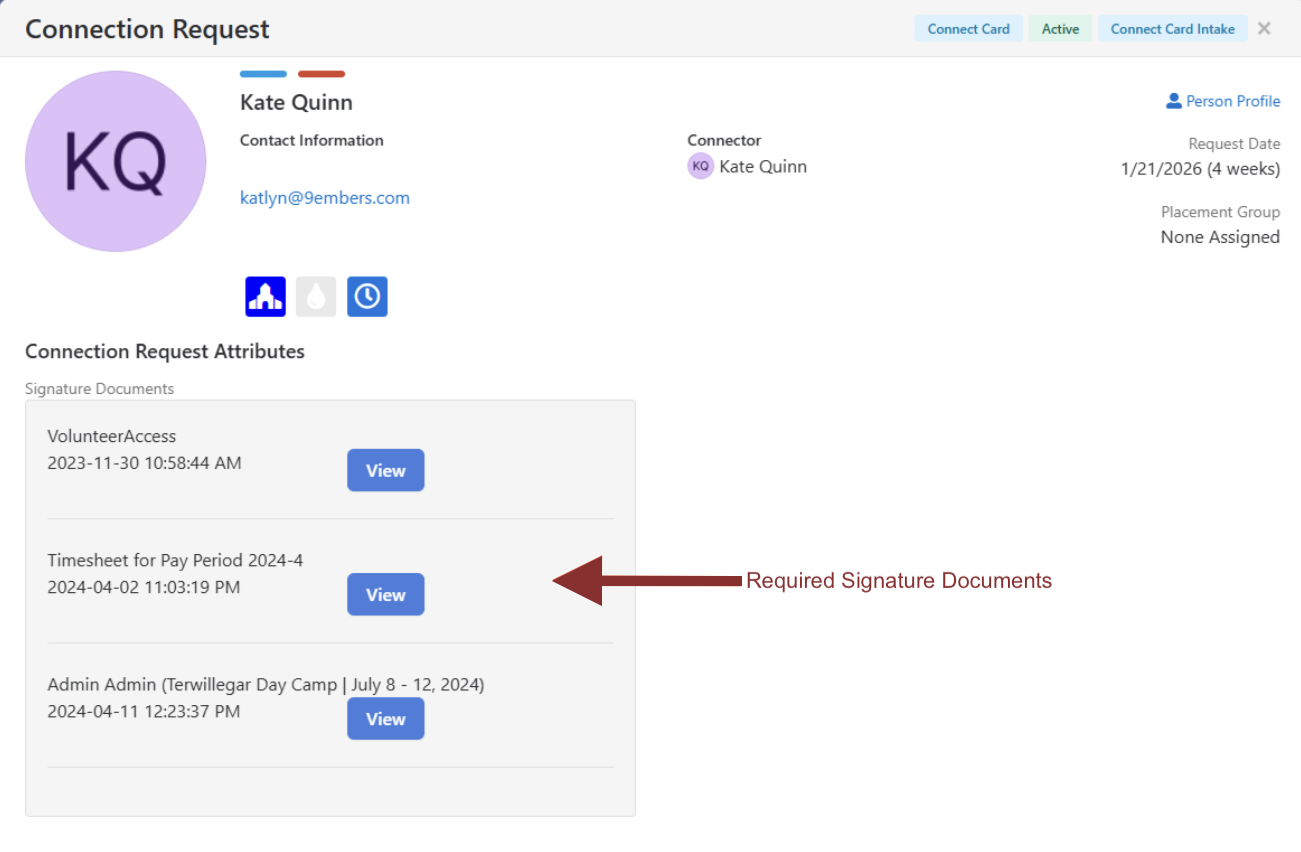 Customization using Connection Request Attributes.
Create Smarter Workflows
Remember those paper guest cards we talked about earlier?
Instead of manually sorting and routing information, a workflow form can collect the same information digitally and automatically launch the appropriate Connection Request based on the selections made. Interest in volunteering can route to one team. A prayer request can route to another. A first-time guest can enter an entirely different follow-up path.
But workflows don't have to stop once the Connection Request is created.
You can also add manual workflow actions directly to the Connection Request. For example, if staff regularly send the same volunteer onboarding email, a workflow action can launch a pre-filled, but still editable, email directly from the detail.
Workflows can also automate actions based on the status of a Connection Request. When a request reaches a specific state, such as Complete, a workflow can automatically connect the individual to a group, send an email, create a follow-up task, or perform ministry-specific actions.
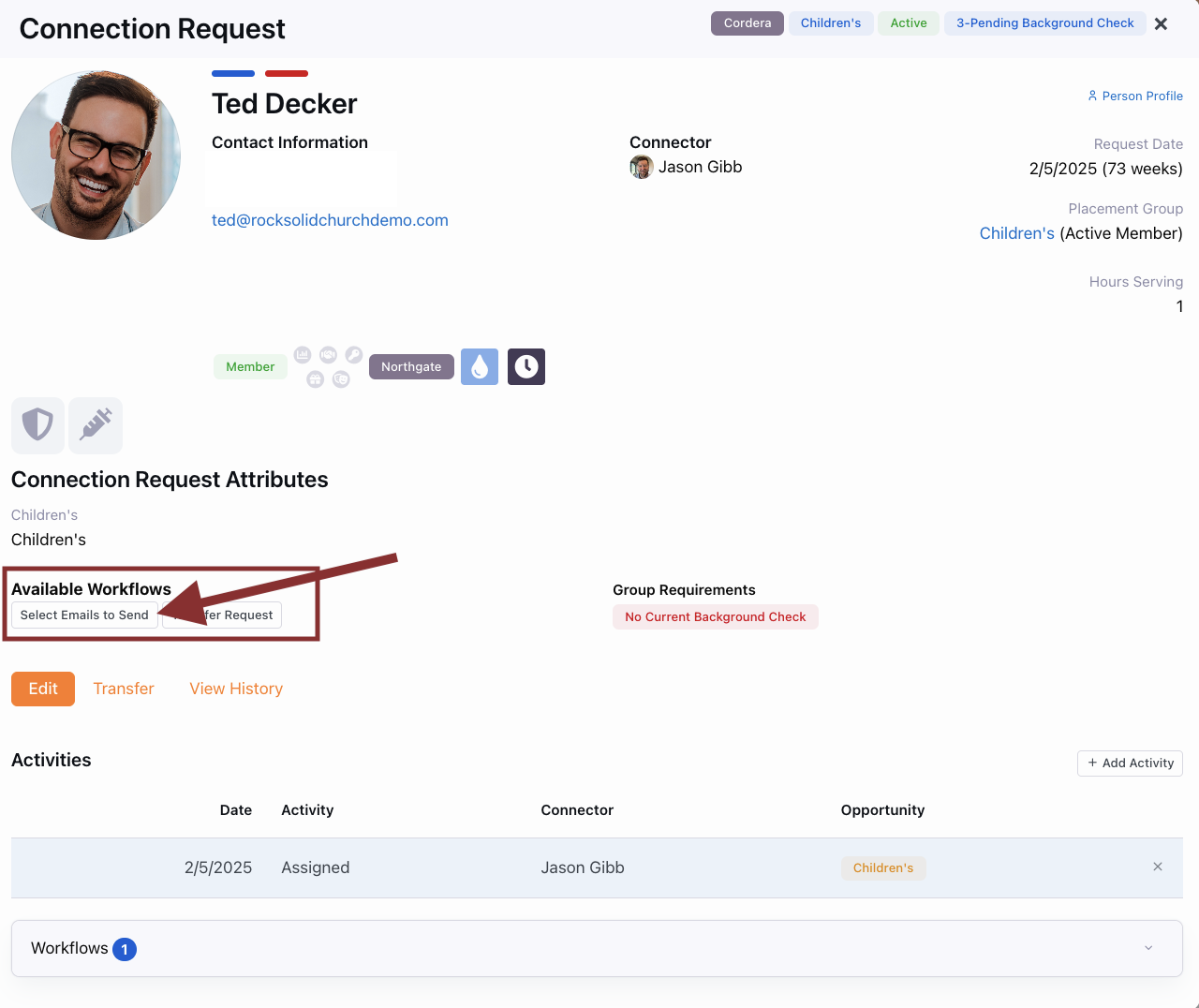 Launching Manual Email Workflows.
The best customizations aren't necessarily the most complex. Often, a few targeted enhancements can save hours of manual work while giving staff the information they need exactly when they need it.
Whether you're welcoming first-time guests, onboarding volunteers, processing prayer requests, or guiding people through discipleship pathways, Connection Requests can help create a consistent and repeatable process for every step of the journey.
If your team is still relying on paper forms, disconnected emails, or manual follow-up processes, you may be overlooking one of the most valuable tools in Rock RMS.
After all, there really is a better way than a stack of paper cards on a desk.