Usage
Out of the box, Rock allows files to be stored either as BLOBs (Binary Large Objects) in the database or as files on the web server. For many organizations, this is more than sufficient. Some, however, may prefer to store files in cloud storage, such as Amazon S3. This approach provides additional redundancy and offloads file storage from the web server.
The provider also works with other S3-compatible storage services, such as Wasabi. See the Alternate Endpoint setting below.
When a file is requested, Rock's GetFile.ashx and GetImage.ashx handlers stream the file from Amazon S3, so files are served through Rock and Rock's file security applies to them as usual.
Storage Provider Setup
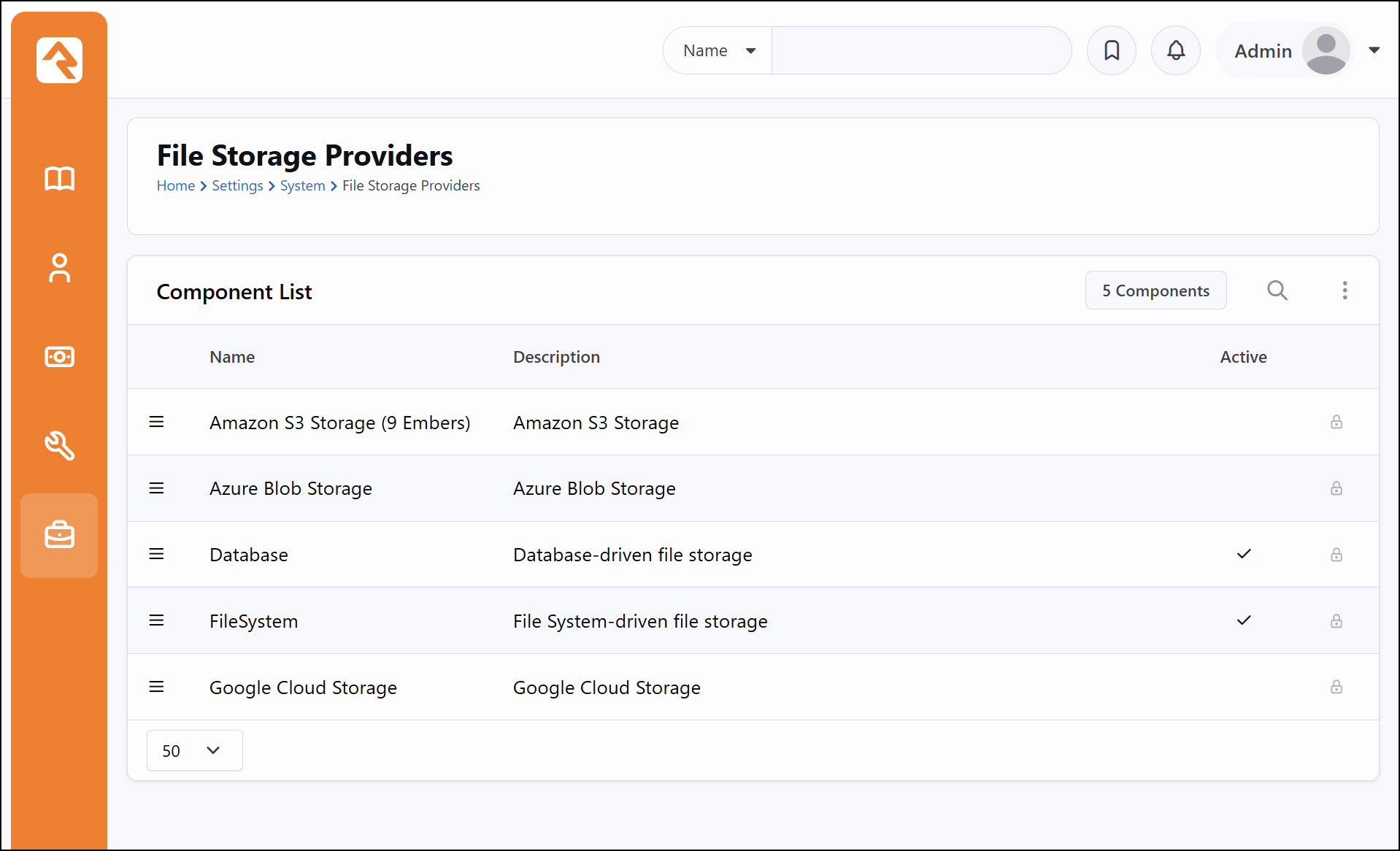
Once the package is installed, a new storage provider named Amazon S3 Storage (9 Embers) will appear under Admin Tools > System Settings > File Storage Providers. This provider is inactive by default and requires additional configuration before it can be enabled.
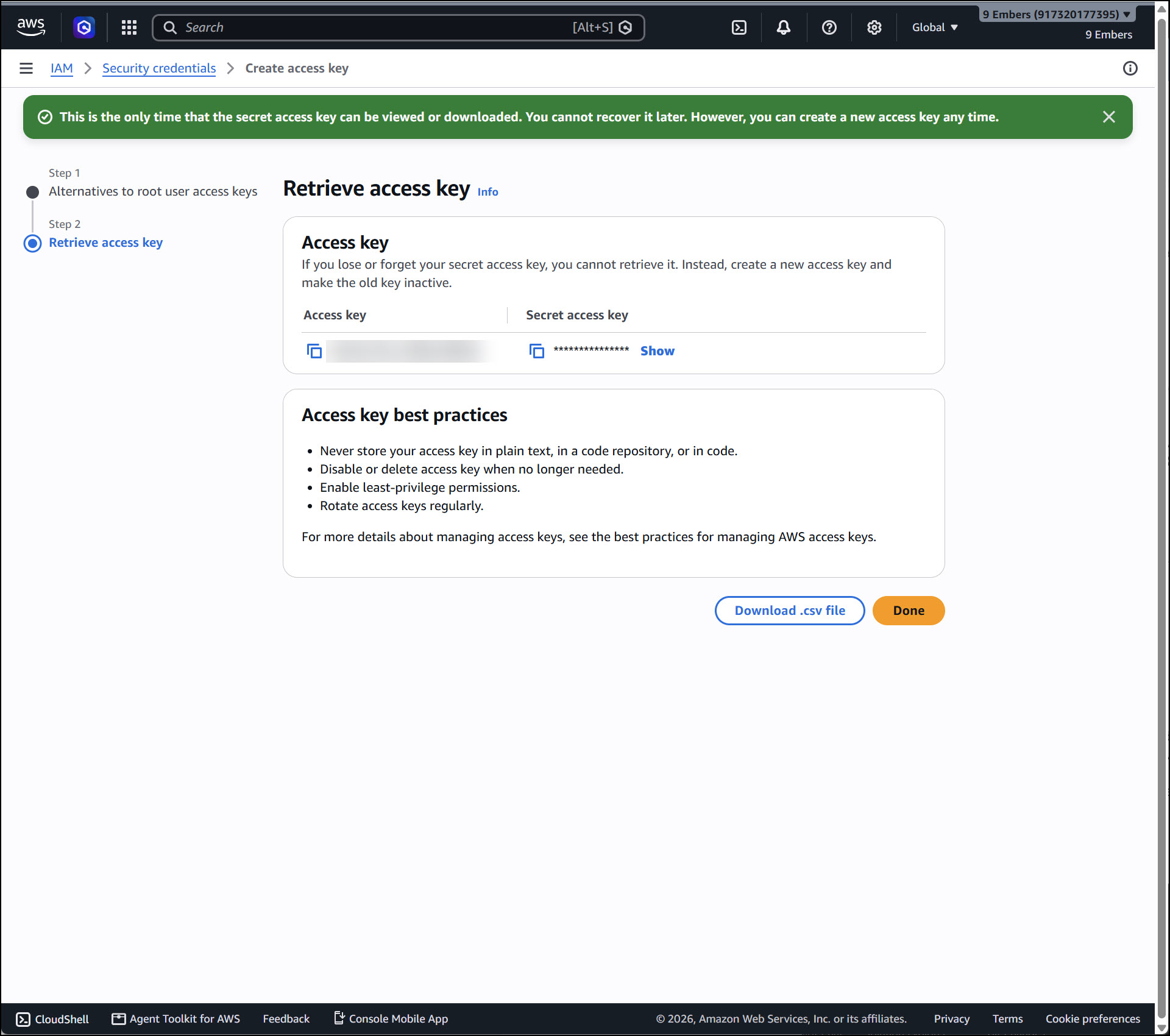
To configure this provider, you will need an Access Key ID and Secret Access Key from your Amazon account, which you create under IAM > Security credentials. Amazon shows the secret access key only once, so copy it or download the .csv file before leaving the page.
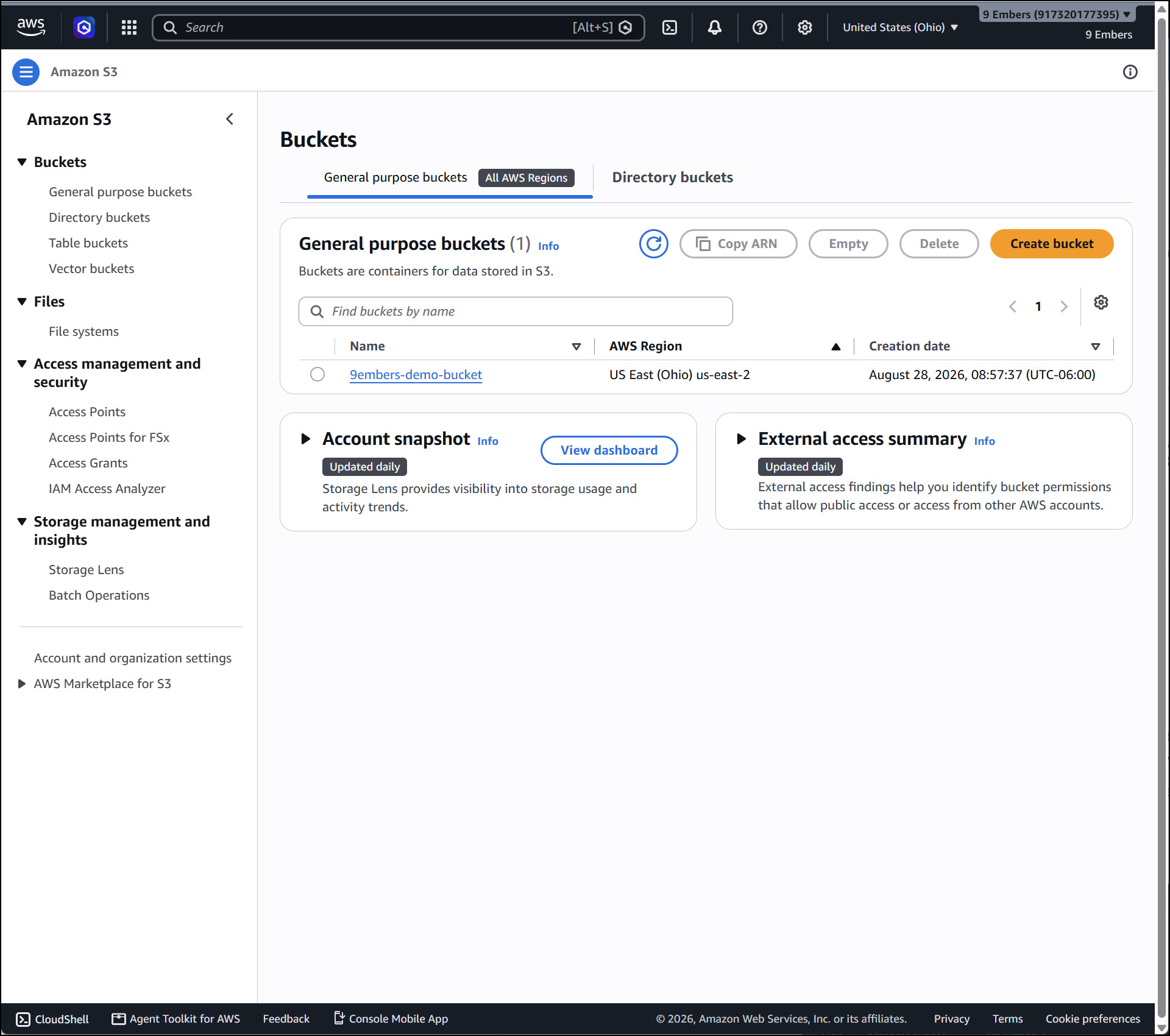
You will also need the name and region of the S3 bucket that will hold your files. Both are shown in the Amazon S3 bucket list.
Once you have the values from your Amazon account, Edit the Amazon S3 Storage (9 Embers) storage provider and enter the values
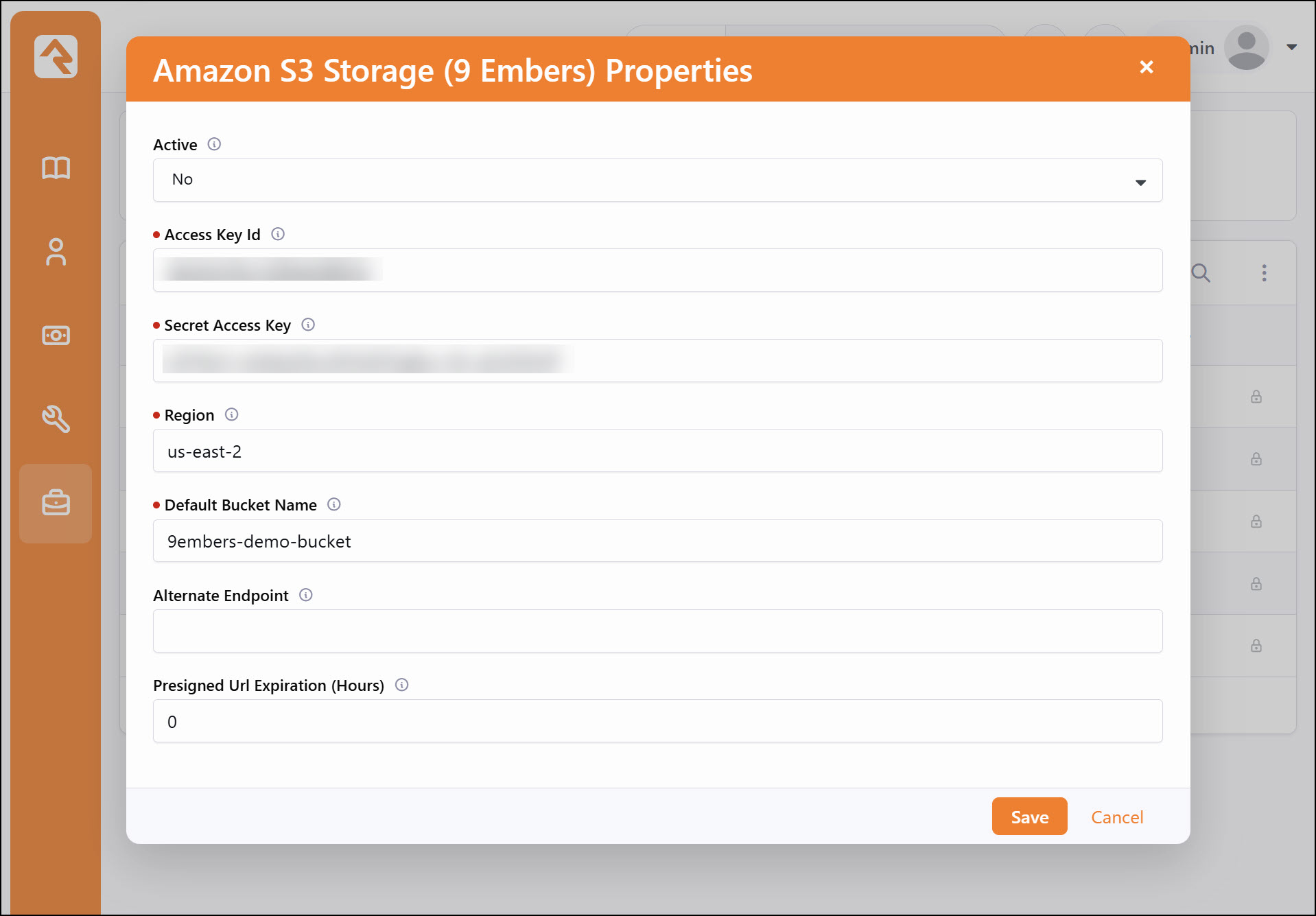
- Active: Determines whether this storage provider is active.
- Access Key Id: The access key ID from the Amazon account. Required.
- Secret Access Key: The secret access key from the Amazon account. Required.
- Region: The system name of the region your bucket was created in, such as us-east-1 or us-east-2. Required, and defaults to us-east-1. It must match the bucket's region. A value Amazon doesn't recognize falls back to us-east-1.
- Default Bucket Name: The Amazon S3 bucket used for any file type that doesn't set its own bucket name. Required.
- Alternate Endpoint: Optional. Leave this blank to use Amazon S3. To use another S3-compatible service, enter its endpoint, for example https://s3.wasabisys.com.
- Presigned Url Expiration (Hours): Optional, defaults to 0. Controls what kind of link the provider produces for a file's URL (see Linking to Files in Lava below). This setting changes only the links produced by a file's Url property in Lava, the 'Url' attribute qualifier, and REST API responses. It does not change how images and files are normally displayed. GetImage.ashx, GetFile.ashx, GetAvatar.ashx and file and image attribute fields always serve files through Rock, whatever this is set to. It is not a way to serve your whole site from Amazon S3.
- 0 (recommended): Links are served through Rock and never expire.
- 1 to 168: Links go straight to Amazon S3 and stay valid for that many hours from the moment the page is rendered.
- Over 168: Treated as 168. Amazon doesn't allow signed links longer than seven days.
Binary File Type Setup
Now that the storage provider is configured, you can set up file types to use it. To create a new file type, navigate to Admin Tools > General Settings > File Types.
When adding a new file type, there are three additional settings to be aware of.
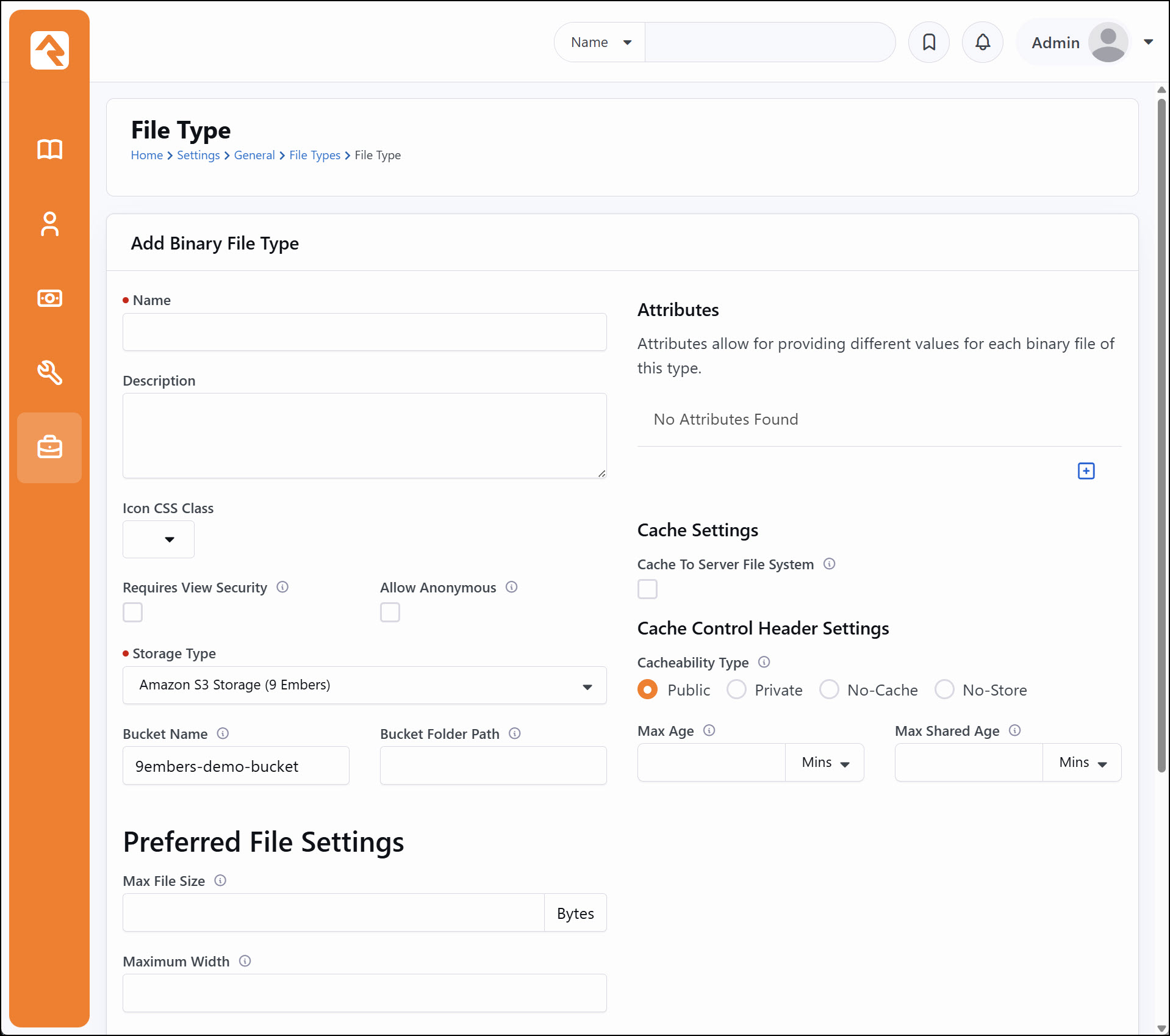
- Storage Type: Set this to Amazon S3 Storage (9 Embers).
- Bucket Name: The Amazon S3 bucket you would like to use. If this is blank, the provider's Default Bucket Name is used.
- Bucket Folder Path: An optional folder path within the bucket where files will be stored.
Once the file type(s) are set up, you can configure your attributes to use them just like you would with any other storage provider.
Security on Public Pages
Because files are served through Rock, Rock's security rules apply to them. Files of a type with Requires View Security turned on can't be viewed by visitors who aren't signed in.
Versions before 1.5.0 handed out signed Amazon links that skipped this check. After upgrading to 1.5.0, a public page that showed these files to anonymous visitors, such as a staff directory or sermon archive, may stop showing them. Check your public pages while signed out after you upgrade.
Linking to Files in Lava
Don't use a file's Path property to display or link to a file. It holds a value saved when the file was uploaded, and on versions before 1.5.0 that value expired.
{{ member.Person.Photo.Path }} {% comment %} Don't do this {% endcomment %}
Use one of these patterns instead.
A person's photo, with your own fallback image:
{% assign photoId = member.Person.PhotoId %}
{% if photoId %}
  <img src="{{ photoId | ImageUrl }}" alt="{{ member.Person.FullName }}" />
{% else %}
  <img src="/Assets/Images/person-no-photo-unknown.svg" alt="" />
{% endif %}
A person's photo, using Rock's built-in initials avatar when there's no photo:
<img src="{{ member.Person.PhotoUrl }}" alt="{{ member.Person.FullName }}" />
An image at a specific size:
<img src="{{ photoId | ImageUrl }}&maxwidth=400" alt="" />
A file attribute in an email, or anywhere else the link is saved:
{{ 'Global' | Attribute:'PublicApplicationRoot' }}GetFile.ashx?guid={{ item | Attribute:'MessageOutline','RawValue' }}
A file attribute's Url, which follows the Presigned Url Expiration (Hours) setting:
<a href="{{ item | Attribute:'SermonAudio','Url' }}">Download message audio</a>
With the setting at 0, this renders a Rock link, like https://yourchurch.org/GetFile.ashx?guid=..., that never expires. With the setting at 4, it renders a link straight to Amazon S3 that stops working four hours after the page was rendered.
If you do use direct links, choose the value with the gap between rendering the page and clicking the link in mind, since the clock starts when the page is rendered:
- For a page rendered live and clicked in the same visit, 1 to 2 hours is plenty.
- For cached page output, or large downloads that may be resumed, use 24.
- For a link handed to an outside vendor or integration, match what they need, up to 168.
- Never use direct links in anything emailed, cached or saved. The link is fixed when the message is sent and stops working on schedule.
Troubleshooting
Images and file links stop working after about a day. Links work at first, then break roughly 24 hours later. Broken images in sent emails are often the first sign. Versions before 1.5.0 saved a temporary signed Amazon link with each file when it was uploaded, and that link expired after 24 hours. Upgrade to 1.5.0. The upgrade repairs the saved links for files already uploaded, so no manual cleanup is needed.
Files can't be uploaded or read. Check that the Region setting matches the region shown for your bucket in the Amazon S3 bucket list, and that the access key has permission to read, write and delete objects in the bucket.
Public pages show broken images after upgrading. See Security on Public Pages above.
Version History
1.5.0
- Fixed file links expiring 24 hours after upload. Links saved for existing files are repaired when the update is installed.
- Added the Presigned Url Expiration (Hours) setting.
- Fixed uploads failing when a file name or MIME type contained a control character.
- Fixed a threading issue that could leak connections during application startup.
- Files are now served through Rock, so Rock's view security applies to them again. See Security on Public Pages.