Overview
This plugin allows you to bulk upload financial transactions into Rock from external sources.
Usage
To begin uploading financial transaction into Rock:
- Create a new page.
- Add the Finance Import block to the page.
- Configure the required block setting that specifies how individuals will be matched.
You must choose one of the following matching methods:
There is also one optional block setting that allows you to pass a Financial Transaction Attribute.
The CSV file must contain the following six columns in this order:
- Person Id
- Envelope Number
- Account Id
- Activity
- Amount
- Date
Note
The value used in the first column depends on your Match People By block setting.
Person Id
If the Match People By block setting is set to Person Id, enter the Rock Person Id in this column. The transaction will be matched directly to the person.
Envelope Number
If the Match People By block setting is set to Envelope Number, enter the Envelope Number associated with the person.
If multiple individuals share the same Envelope Number, the transaction will be matched to the Head of Household.
Account Id
Enter the Id of the Financial Account to which the transaction should be applied.
Activity
If the Finance Activity Attribute block setting is configured, this column can be used to pass a value for a Financial Transaction entity attribute.
Important requirements:
- The attribute must be created on the Financial Transaction entity.
- The attribute's Field Type must be Defined Value.
- You must pass the exact name of the Defined Value.
- The block will assign the Financial Transaction Attribute based on the value provided.
This column is optional. If you are not using this functionality, you may leave it blank.
Amount
Enter the transaction amount.
Date
Enter the transaction date.
Block Settings
The following settings are available for the Finance Import block:
| Setting |
Default Value |
Description |
| Name |
Finance Import |
This will show in the block title. |
| Finance Activity Attribute |
None |
This dropdown will look for any Entity Attributes on the
Financial Transaction Entity.
|
| Match People By |
None |
Allows for transaction matching to be performed by the Rock Person Id
or the Envelope Number.
|
Importing a CSV File
The following steps outline the full process for importing a CSV file.
Note
Assumption: A page has already been created and the Finance Import block has been added to that page.
When you navigate to the page, you will see a screen similar to the one shown below.
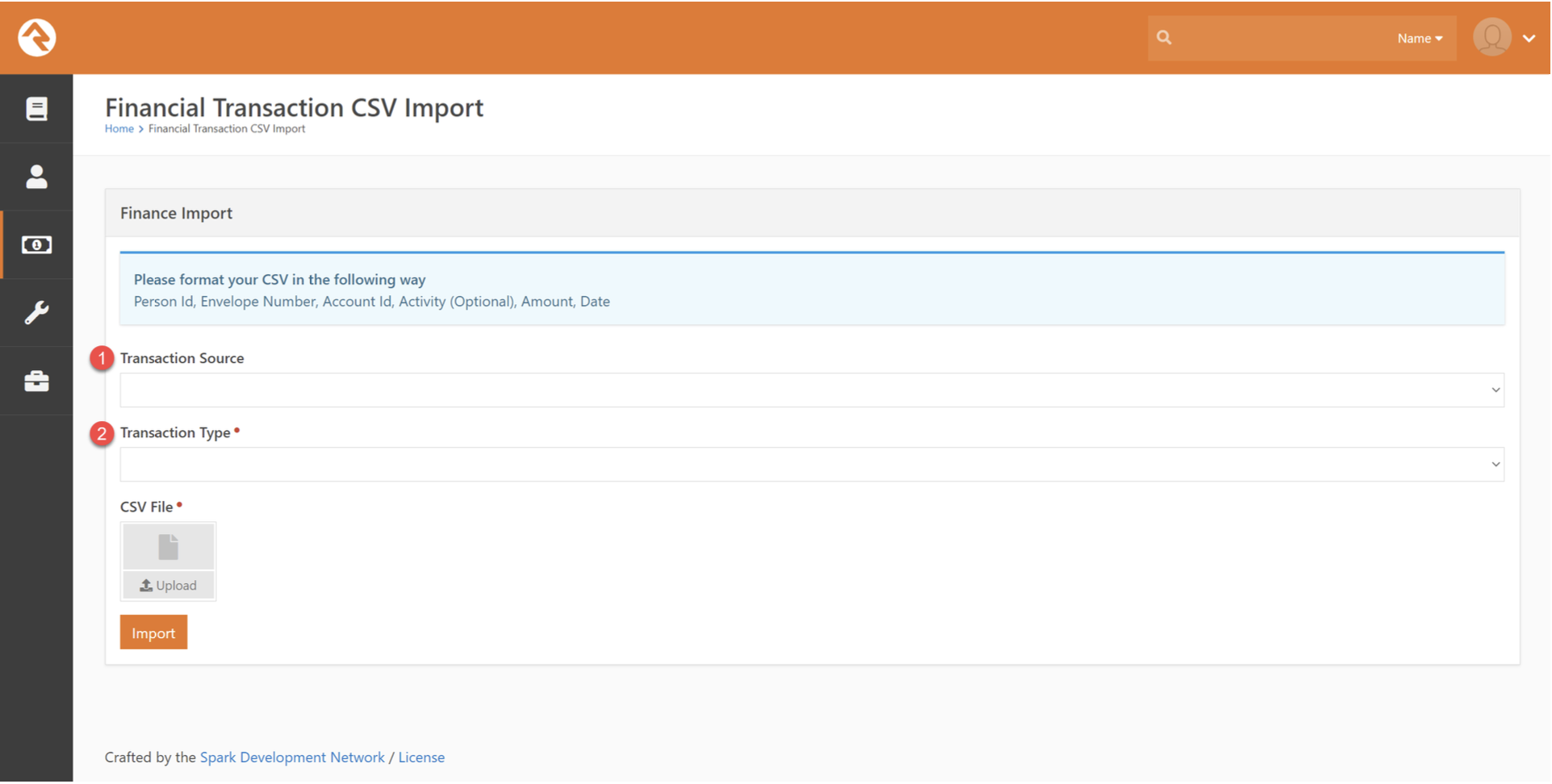
Import Options
- Transaction Source (Optional)
You may select a Transaction Source that will be applied to all imported transactions.
2. Transaction Type (Required)
You must select a Transaction Type. This value will be applied to all transactions included in the import.
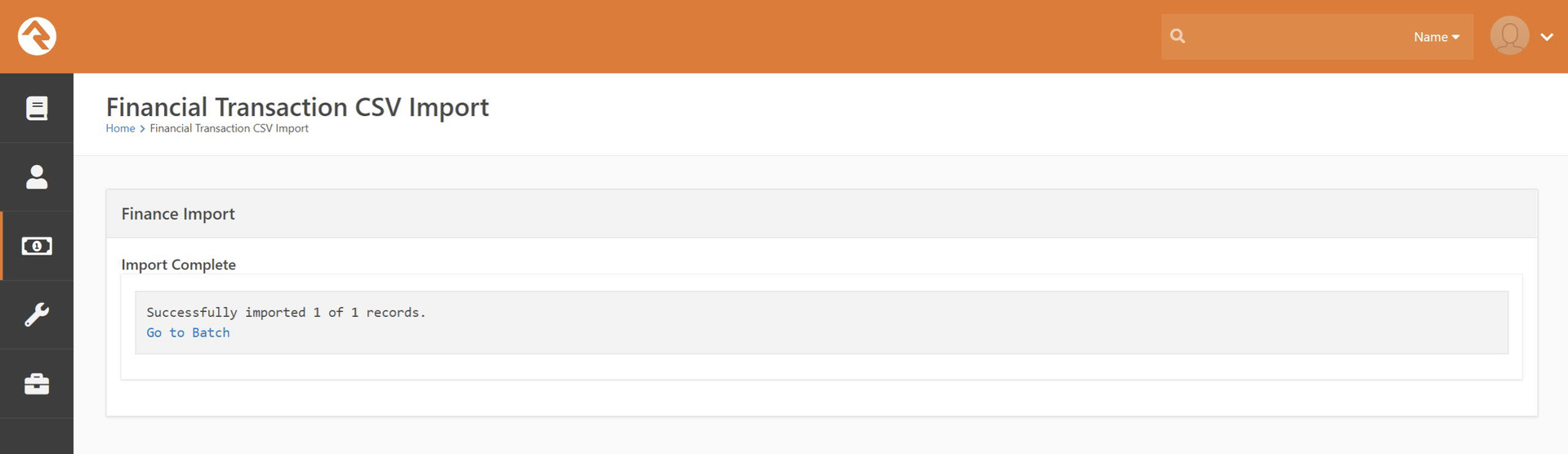
After the file has been processed, you will see a confirmation message indicating that the import has completed successfully.
Reviewing the Created Batch
After the import completes, navigate to the newly created Batch.
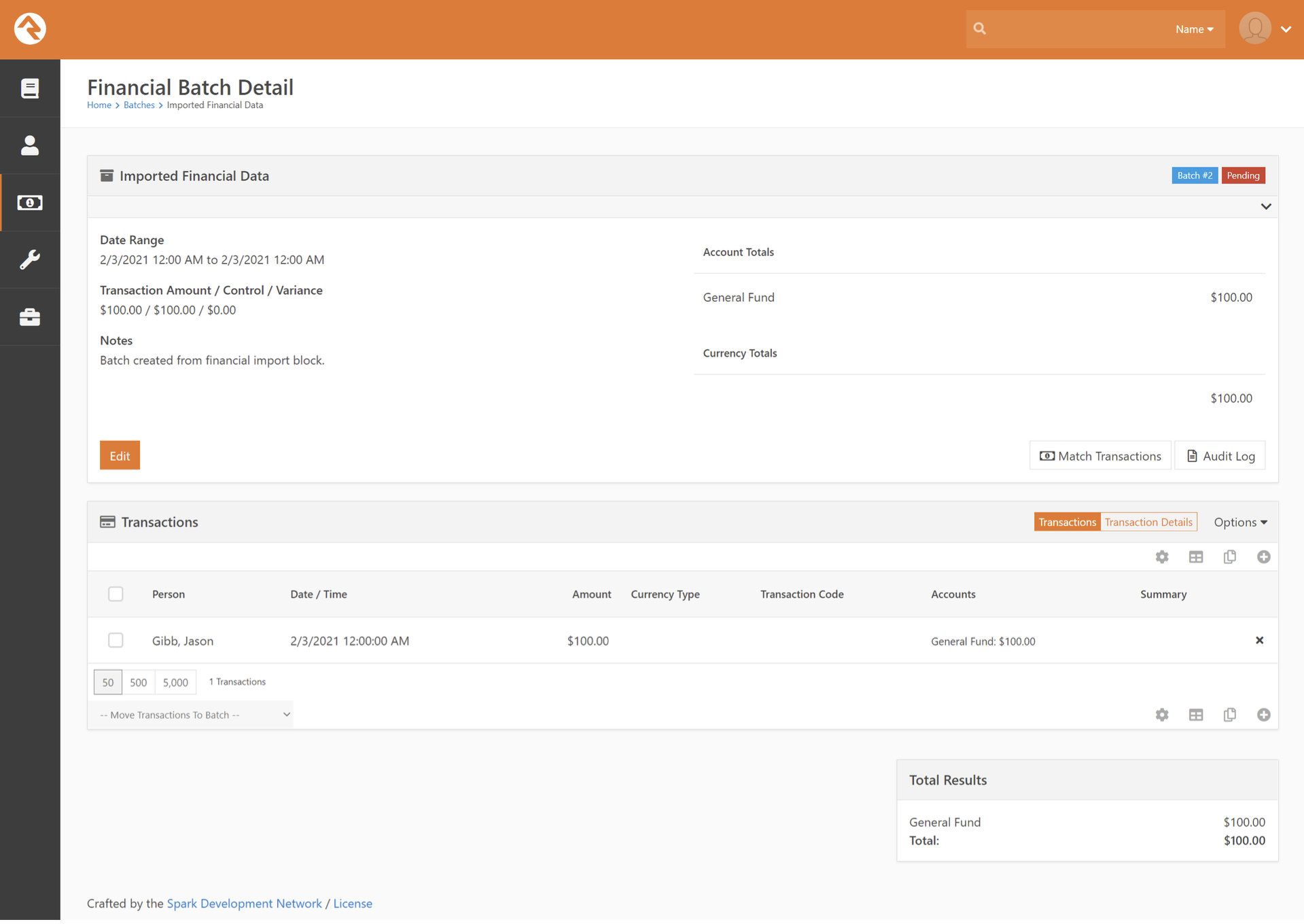
Notice the following:
- The Batch is created with a Status of Pending.
- The transaction has been successfully matched to a person (if matching data was provided in the CSV).
Optional Manual matching
The block does not require a Person Id or Envelope Number to be included in the CSV file.
If you prefer, you may leave those fields blank and perform transaction matching later using Rock's Match Transactions tool.