Prefer video instructions instead? You're in luck! Click the appropriate link below for step-by-step video guides.
Installing PCO Sync V2 with V1 already installed
How PCO Version 1 Appears in Installed Plugins
If you’re running version 1 of the plugin, you’ll see it listed on your Installed Plugins page.
What Version 1 Did
You had to:
- Set up a group for each security level in PCO
- Manually manage folders, groups, and permission levels tied to a PCO account
- Map those groups to tags within the plugin
- Rely on attributes for tags that weren’t mapped to a group
What version 2 improves:
- It will auto-import your person and group tag mappings
- It will also add a PCO Marker attribute to your existing PCO groups and tags
Let's Install!
Start with the PCO Install Assistant
Once you launch the assistant, it’ll recognize your version 1 install automatically.
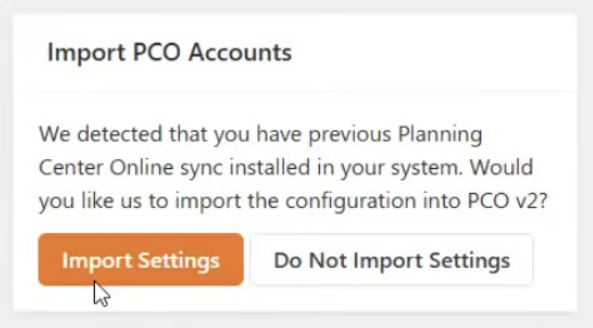
PCO Install Assistant detects previous version of PCO Sync
you'll be prompted to:
Import Settings
We highly recommend choosing this option. This will import the PCO account information you already added when you installed PCO Sync V1. Once complete, the assistant will tell you what was imported.
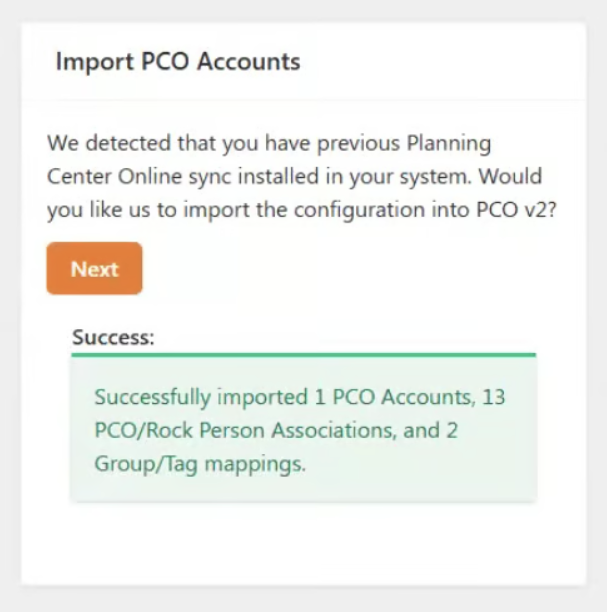
Success screen after using Import Settings
Don’t want to import PCO Accounts automatically? No problem—Click Do Not Import Settings. Use the menu on the right to skip to instructions for Not using version 1? Let’s Do a Fresh Install.
Next Steps with PCO Install Assistant:
- Add your 9 Embers Account info. If you do not have a PCO Sync V2 account, follow this link to the PCO Sync V2 Subscription Request. It’s just a quick form, and you’ll get setup instructions faster than you can say workflow.
- Set how often the job runs. We suggest every 4 hours to start. You can adjust this anytime.
- Remove the Old Version. This will trigger a system restart—heads up!
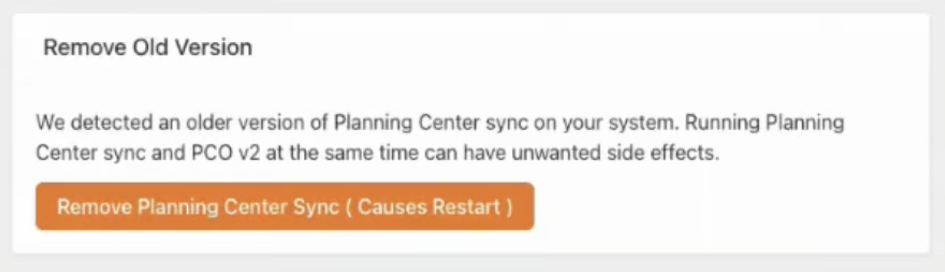
Removing the old PCO Sync V1 is automated in PCO Sync V2
Before You Run Your First Sync
Things to do before your first sync. There are a few things to configure before your first sync. You'll find this setup section under: PCO V2 > Assistants
Job Configuration Assistant
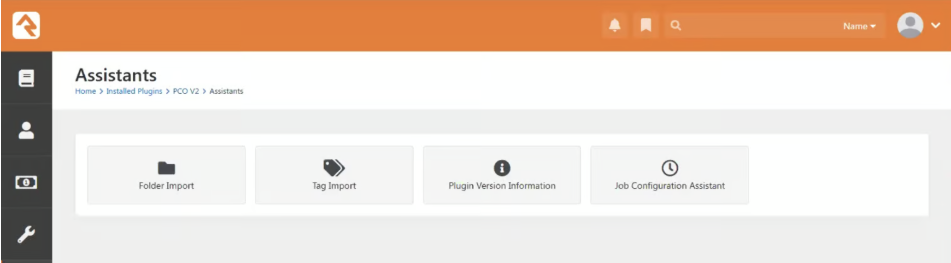
The Assistants Dashboard Options
- Set up your Notification Group—they’ll get alerts if the sync fails or if it exceeds your change threshold.
- Stoppage Percent: Set it to 0% for now. This stops the job so you can review all changes before anything happens.
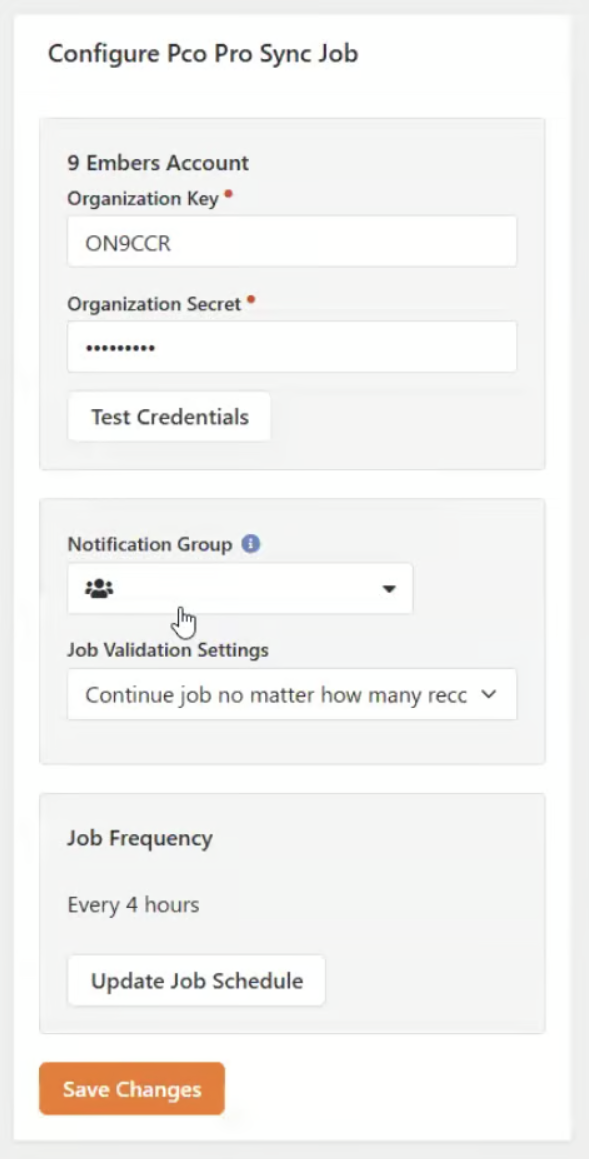
Settings for PCO Sync V2 Job
Tag and Folder Import
If you used PCO V1, you likely already have tags and/or groups (folders) set up.
- Folder Import: You can skip this step if you're satisfied with your current group structure.
*Note: Want to start fresh with your groups? Use the automation to rebuild your group setup from scratch. [Jump to: Not using version 1? Let’s Do a Fresh Install > Before You Run Your First Sync > Assistants]
Tag Import: In V1, tags were stored as attribute values. In V2, tags are imported as native Rock tags.
*Note: If you’ve been using tags in PCO, consider using the Tag Import to automatically create matching Rock tags. 👉 [Jump to: Not using version 1? Let’s Do a Fresh Install > Before You Run Your First Sync > Assistants]
Campus Mapping
PCO V1 didn’t handle campus mapping. If you have multiple campuses, you may choose to use this. You'll find this setup section under: Installed Plugins > PCO V2
Here's how to get them aligned:
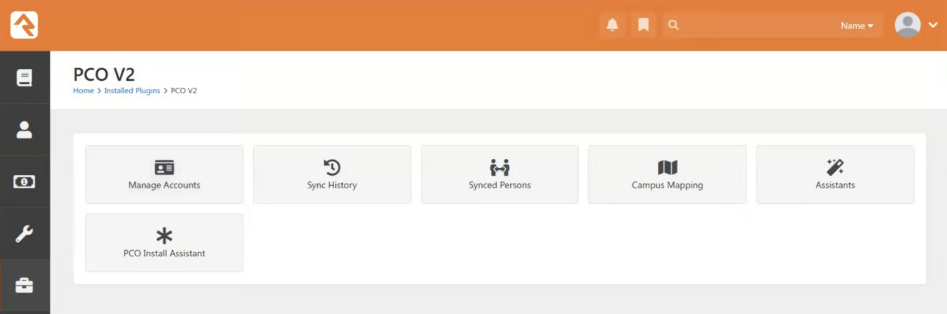
Campus Mapping is located in the PCO V2 Dashboard
- Click on Campus Mapping
- For each Rock Campus, select:
- Source: Planning Center
- The PCO campus to map to it
3. Repeat for each campus. Done and done.
Your First Sync
The job is called PCO V2 Sync. After it runs, check out the Sync History.
If your Stopping Percentage is set to 0 you’ll see the status Awaiting Review. Click into the line to see the details.
Here’s what you’ll see:
- "Adding a new person” usually means assigning them to a group or tag—not creating a duplicate person record. Rock will attempt to make the profile after you approve the job.
After reviewing:
- Click Approve
- Refresh the Sync History to check for errors
- Errors appear below the Operations block help pinpoint what needs to be fixed
As you run the job more, you’ll see fewer changes each time. If something doesn’t look right:
- Cancel the job
- Make updates in Rock or PCO
- Re-run the sync
Once everything’s dialed in, you’ll start seeing people in the PCO marker groups if you imported folders.