Instructions for configuring and using this plugin with Rock RMS.
Requires Rock v19 and above. Churches on Rock v16–v18 should stay on version 2.0 of the plugin.
Overview
The Soft Credits Plugin enables your church to assign and track soft credit donations, ensuring visibility into contributions that support individuals or organizations beyond the direct donor. The plugin lets you designate Soft Credit For and Soft Credit From, so giving is accurately reflected in giving reports and profile giving graphs.
A soft credit applies when a donation is made on behalf of another individual or entity, such as a business or foundation. In these cases:
- The donor (person or business) is assigned the transaction.
- The designated recipient—the individual or entity for whom the donation is made—receives a soft credit.
The plugin records this with two person attributes on each transaction detail (each account line of a transaction):
- Soft Credit For – the transaction stays on the record of whoever actually gave (usually the business), and the attribute names the person who should be recognized.
- Soft Credit From – the transaction is placed on the person's record, and the attribute names the business the money actually came from.
Key Features
The Soft Credits Plugin allows you to:
- ✔️ Establish soft credit relationships using Soft Credit For and Soft Credit From.
- ✔️ Automatically assign soft credits to a business's new transactions with the Sync Soft Credits job.
- ✔️ Edit existing transactions to ensure accurate soft credit assignments.
- ✔️ View all soft credit transactions using date range filters and other relevant criteria.
- ✔️ Include soft credits in giving reports and profile giving graphs (when using Soft Credit From).
- ✔️ Include soft credit details on giving statements, including end-of-year statements from the Statement Generator.
- ✔️ Link people whose only giving is soft credits straight to their contribution statements.
Example
Ted Decker owns Tip Top Tree Shop.
Tip Top Tree Shop makes a donation on behalf of Ted Decker.
As a result:
- The transaction is assigned to Tip Top Tree Shop.
- A soft credit is assigned to Ted Decker.
Installation & Configuration
System Job: Sync Soft Credits
When the Soft Credits Plugin is installed, a system job called "Sync Soft Credits" is automatically added (Admin Tools > System Settings > Jobs Administration). This job runs daily at midnight, assigning soft credits to the designated recipient for any business that has a Default Soft Credit.
The job's Soft Credit Direction setting controls how every transaction it processes is handled:
- Keep transaction on this business and add 'Soft Credit For' value for person (the default) – the gift stays on the business, and the person is named in Soft Credit For.
- Move transaction to person and add 'Soft Credit From' value for this business – the gift is moved to the person's record, and the business is named in Soft Credit From. Use this option if you want the transactions to appear on the profile of the person the soft credit is for.
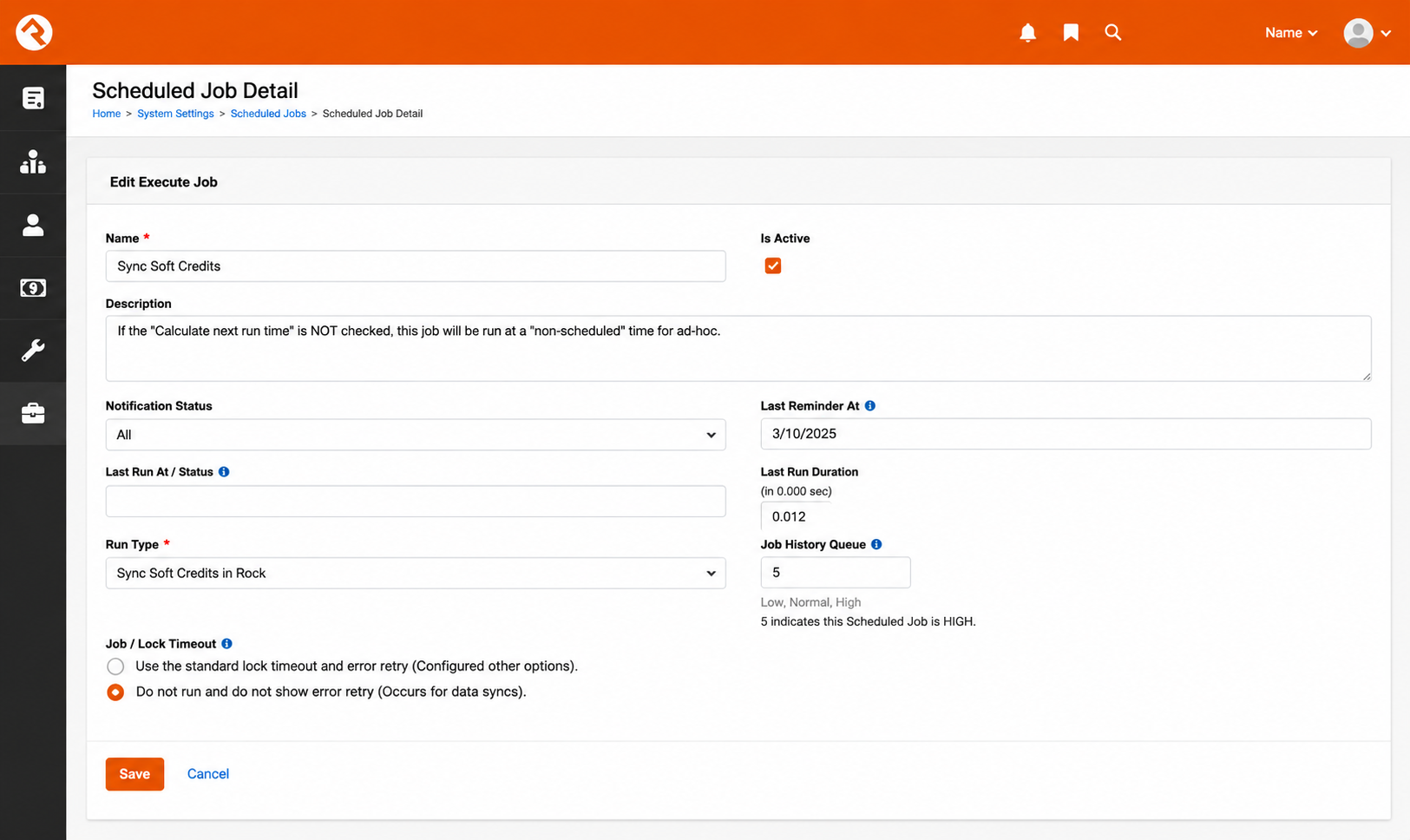
Each time it runs, the job:
- Finds every business with a Default Soft Credit value.
- Gathers that business's transactions that were created or modified since the job's last successful run.
- Skips any transaction that already has a Soft Credit For or Soft Credit From value on any of its account lines. The job never overwrites a value someone has set.
- Applies the selected direction to the rest.
The job result shows how many transactions were assigned a soft credit.
Establishing the Soft Credit Relationship
Assigning Soft Credit to a Person for a Business Profile
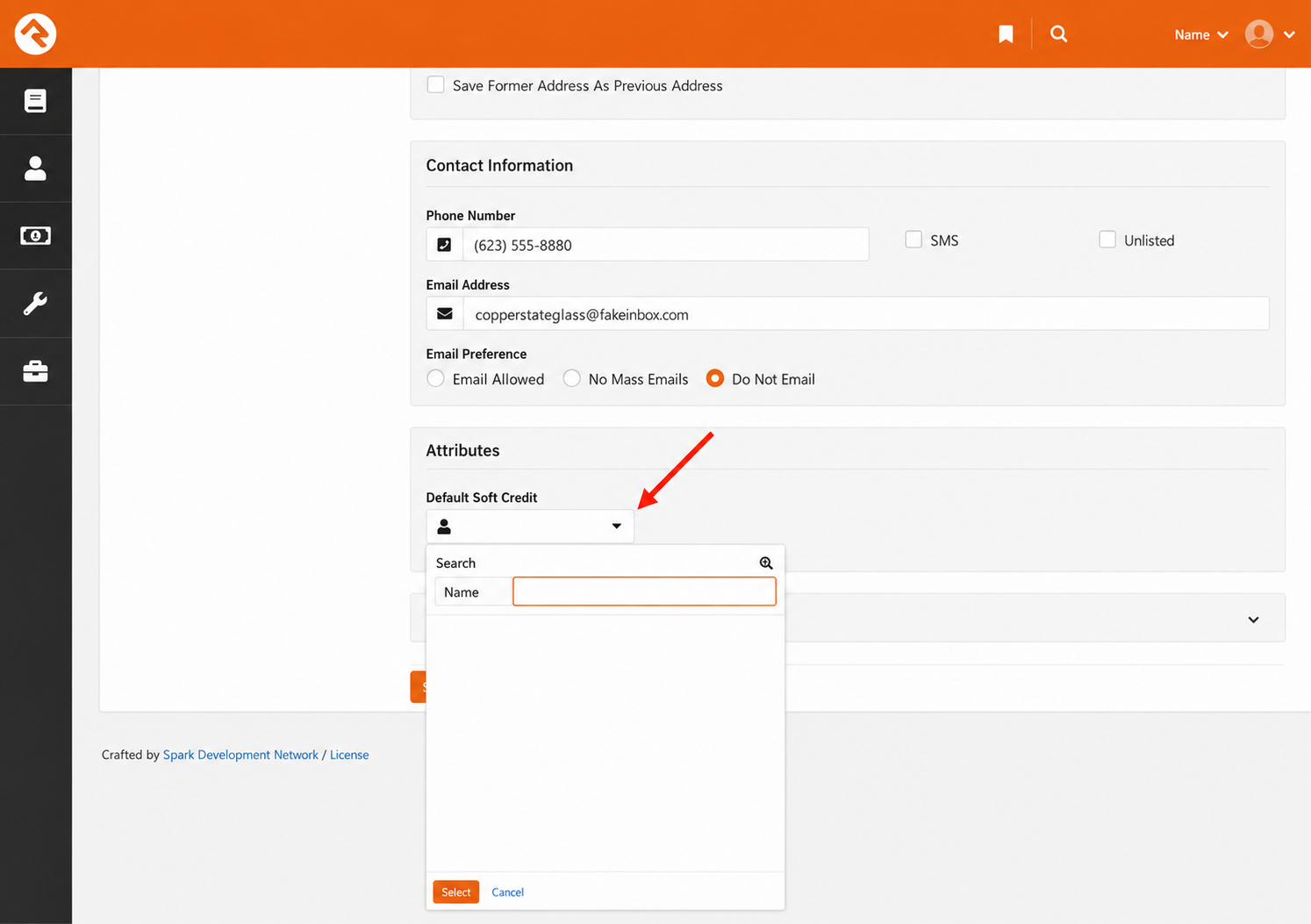
The plugin adds a Default Soft Credit attribute to business records. Setting it tells the Sync Soft Credits job who should receive credit for that business's giving.
Steps to Assign Soft Credit:
- Navigate to Finance > Businesses.
- Select the business you want to update.
- Click Edit.
- Locate the Default Soft Credit attribute, which defines who the soft credit is for.
- Select the person who the soft credit should be for.
- Save the changes.
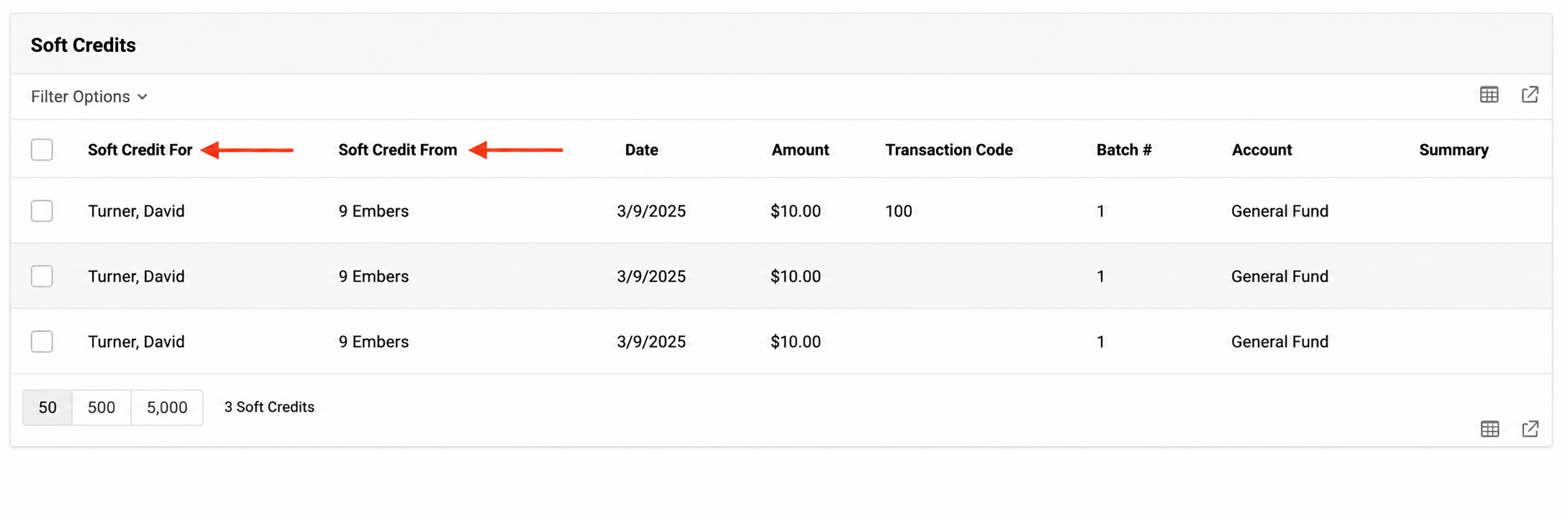
Once configured, the Soft Credits list on both the Business Details page and the recipient's profile will display Soft Credit For and Soft Credit From values.
Note: A business has only one Default Soft Credit. If a single gift from a business needs to be credited to several people, set the soft credit by hand on each account line of the transaction instead (see Updating an Existing Transaction).
Updating an Existing Transaction
Note: Setting a Default Soft Credit does not retroactively update past transactions. The job only processes transactions created or modified after its last run, so older gifts must be edited manually. Editing an old transaction for any reason also makes it eligible the next time the job runs, unless it already has a soft credit value.
Editing an existing transaction:
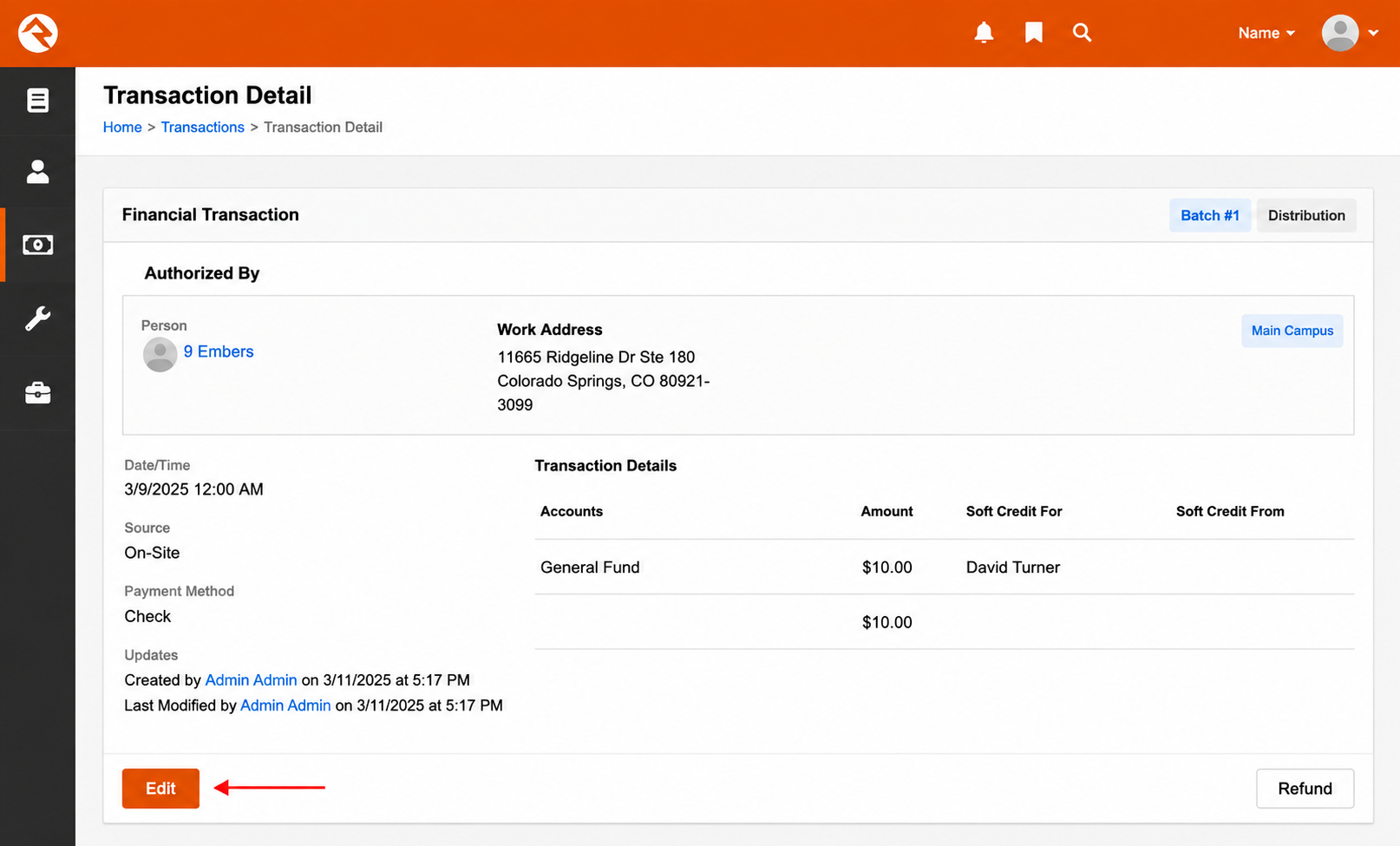
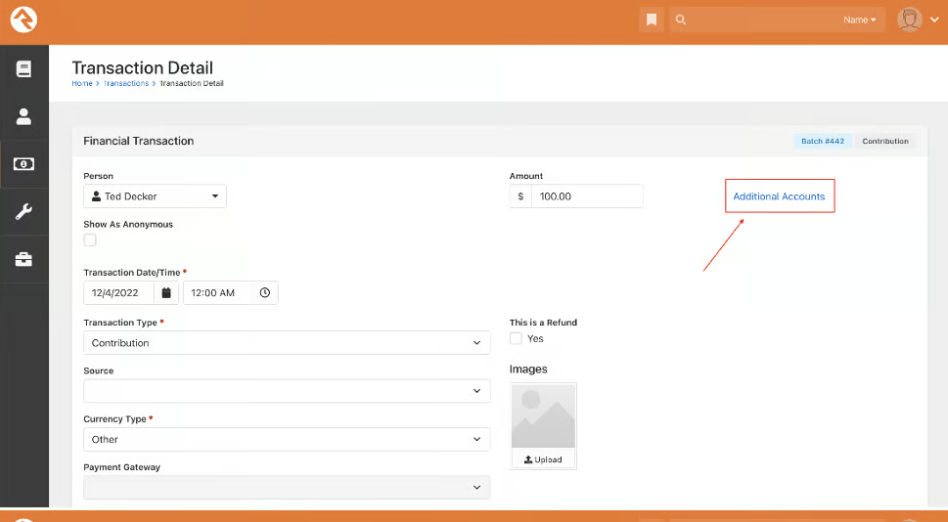
Click Additional Accounts
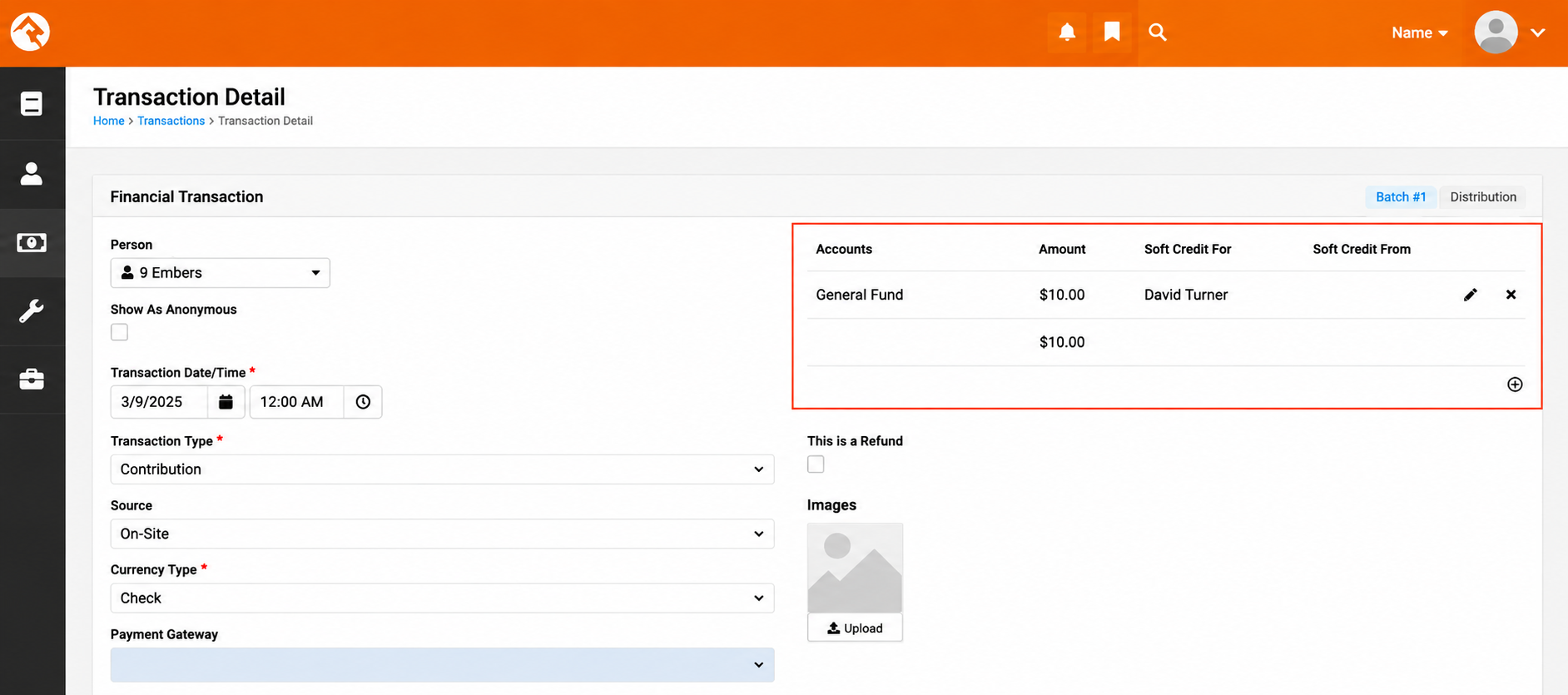
Edit the account line
Designate Soft Credit For or Soft Credit From
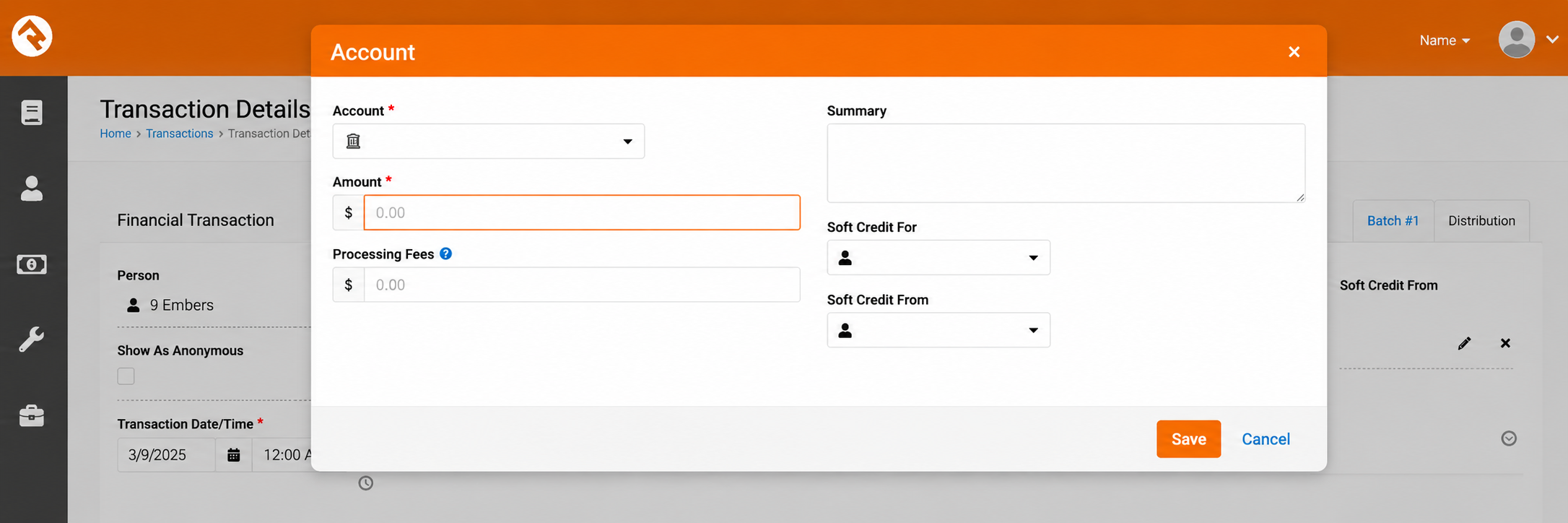
Important: Each account line only needs one value. For a transaction on a business, set Soft Credit For (the person). For a transaction on a person that came from a business, set Soft Credit From (the business). Each account line has its own values, which is how a single business check can credit several people.
To correct or remove a soft credit, edit the account line again. Clearing both values makes the transaction eligible for the Sync Soft Credits job the next time it's modified.
Soft Credit Move Utility Block
The Soft Credit Move Utility converts existing soft credits between the "For" and "From" designations in bulk.
If you previously used the Soft Credit For value in earlier versions of the plugin, this utility helps transition to the Soft Credit From model.

Steps to Use the Soft Credit Move Utility
- Navigate to Admin Tools > Installed Plugins > Soft Credit Move Utility.
- Choose how to update soft credits. For ⮕ From moves each transaction with a Soft Credit For value to the credited person's record, clears the For value, and sets a From value pointing back at the original business. From ⮕ For does the reverse.
The utility processes every transaction with the source designation, shows its progress as it goes, and gives a summary at the end. It's safe to run again; anything already converted is skipped.
Warning: If the account lines of a transaction are soft-credited to different people (or only some lines have a value), the utility can't move it, because the whole transaction would have to go to one person's record. These transactions are listed at the end so you can update them manually.
Viewing All Soft Credits
To view all assigned soft credits, navigate to:
Finance > Soft Credits
This page lists every transaction detail that has a soft credit. Both columns are always filled in: Soft Credit For is whoever gets the recognition, and Soft Credit From is whoever actually gave. Clicking a row opens the transaction.
You can filter by date range, amount range, currency type, credit card type, transaction code, account, transaction type and source type. The Attribute Type filter lets you choose between:
- ✔️ Soft Credit For
- ✔️ Soft Credit From
The same list appears on a person's Contributions tab and on the Business Details page, showing only the soft credits for that person or business.
Soft Credit (only) Statements
Some people never give directly—everything they're credited with comes through a business—so Rock's own statement links don't appear for them. The Soft Credit (only) Statements panel on the Contributions tab and the Business Details page fills that gap. For anyone whose giving unit has soft credits but no regular contributions in the current year or the two years before it, the panel shows a button for each year with soft credits, linking straight to that year's contribution statement.
Including Soft Credits in Giving Statements
After installing the plugin, two Lava shortcodes will be available in:
- [9 Embers] Soft Credits Statement (For) – softcreditsforstatement – gifts soft-credited for the statement person, showing who the gift was actually from, with a note that these gifts are not tax-deductible for them.
- [9 Embers] Soft Credits Statement (From) – softcreditsfromstatement – gifts this person or business gave that are recorded under someone else's name, with a note that the tax-deductible benefit belongs to them.
Both take the same parameters and show nothing when there are no matching gifts:
{[ softcreditsforstatement personid:'{{ Person.Id }}' startdate:'{{ StatementStartDate }}' enddate:'{{ StatementEndDate }}' ]}
{[ softcreditsfromstatement personid:'{{ Person.Id }}' startdate:'{{ StatementStartDate }}' enddate:'{{ StatementEndDate }}' ]}
Note: If you used version 1.x of the plugin, its shortcode is still available, renamed "[9 Embers] Soft Credits Statement (OLD: Don't Use)", because it is likely already included in your current giving statements. Replace it with the new shortcodes.
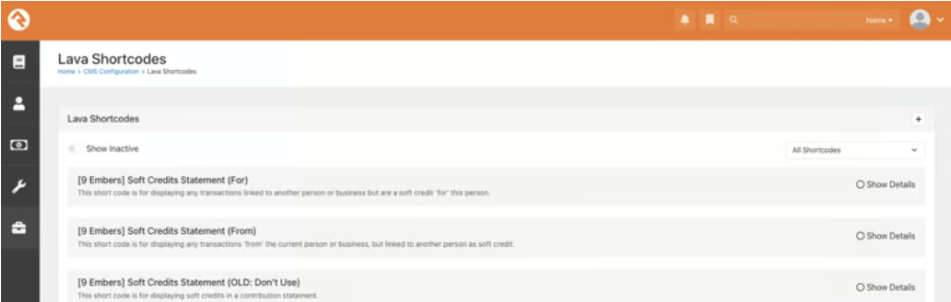
Steps to Add Soft Credits to Giving Statements:
Step 1: Navigate to Finance > Financial Settings > Contribution Templates and select the statement template you wish to update.

Step 2: The plugin includes a Soft Credits Sample template that shows how to use the shortcodes in a giving statement. If you're running a statement for a person who has transactions on their record from an organization (Soft Credit From), you don't want to count those in their tax-deductible total. The sample template handles this by:
- Excluding transactions from an organization that appear on a person's record from their tax-deductible total.
- Displaying business transactions made from the business for a person.
- Showing transactions on a personal record that are soft credits from a business.
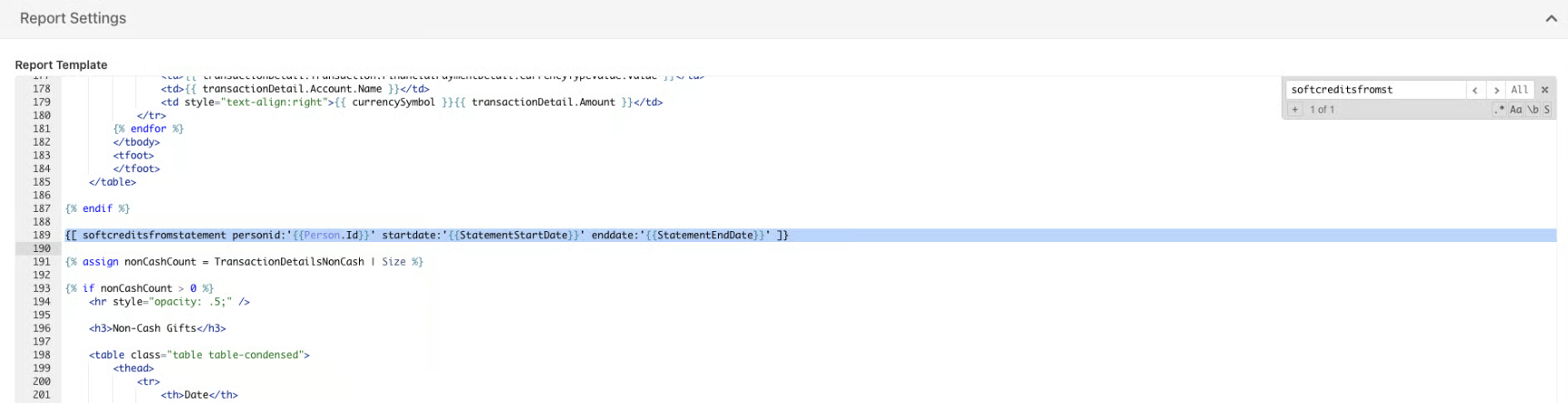
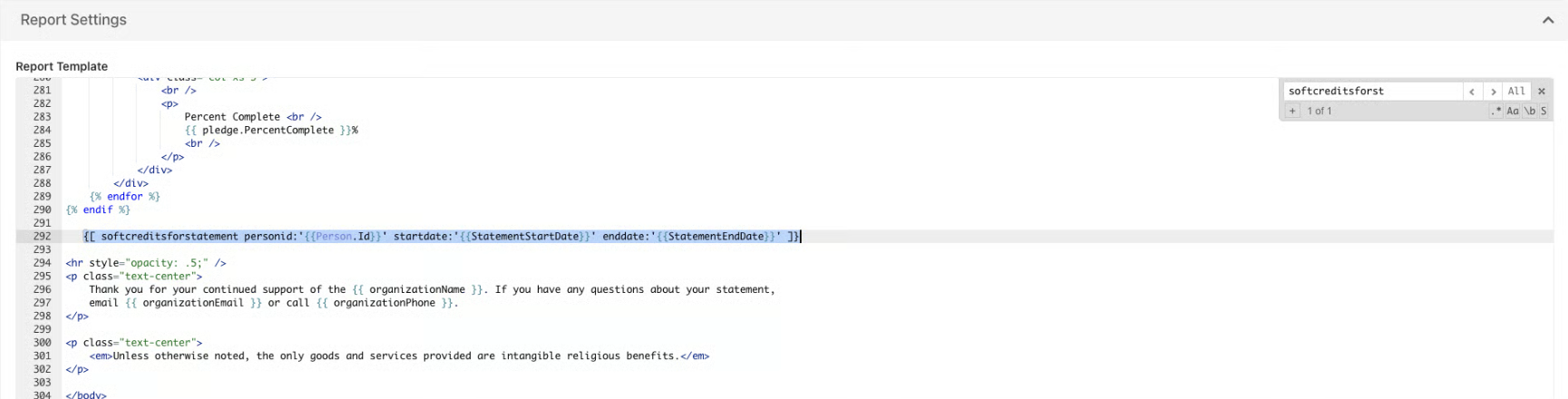
Step 3: Paste the Lava shortcode in the desired location within your template.
Step 4: Save the changes to update the giving statement format.
Additional Features
- ✔️ If a statement includes Soft Credit From gifts, it displays an alert explaining that soft credits are not tax-deductible gifts.
- ✔️ The statement summary separates Total Cash Gifts, Total Soft Credits and Total Tax-Deductible Gifts for clarity.
- ✔️ A Soft Credit From column is added to the transaction table, listing the associated business.
Preparing for End-of-Year Contribution Statements
The Rock Statement Generator normally builds its list of recipients from actual contributions, so people whose only giving is soft credits would not get a statement, and could be dropped by minimum-amount settings. The plugin includes two API endpoints that fix both.
Before generating end-of-year statements, make sure you are using Statement Generator v1.14.2 or later.
📥 Download the required version: Statement Generator v1.14.2
This version allows you to change the endpoints used for downloading contributions.
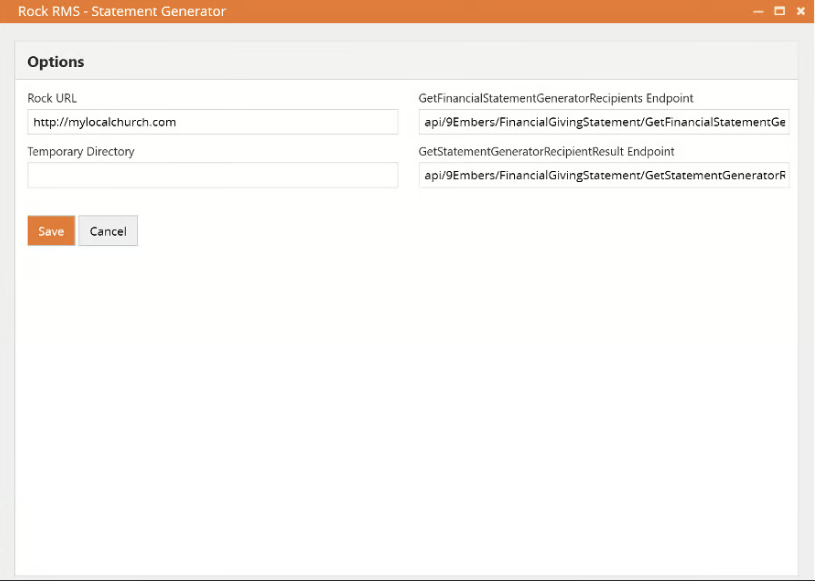
- Open the Statement Generator and log in.
- Click the Tools button in the top-left corner.
- Select Options from the dropdown menu.
- Set the GetFinancialStatementGeneratorRecipients Endpoint to api/9Embers/FinancialGivingStatement/GetFinancialStatementGeneratorRecipients and the GetStatementGeneratorRecipientResult Endpoint to api/9Embers/FinancialGivingStatement/GetStatementGeneratorRecipientResult, then click Save.
- Process your statements as usual.
The first endpoint returns Rock's normal recipient list plus anyone with a soft credit in the date range (person and data view filters still apply). The second returns each statement as Rock builds it, except that a recipient with no contributions gets their soft credit total instead, so they aren't dropped by "exclude statements under" settings.
Important: The endpoints are secured the same way as Rock's own statement endpoints, so the account you log into the Statement Generator with needs the same rights it needs for regular statements.
Important Note
When choosing between Soft Credit For and Soft Credit From, consider the following:
Advantages of 'For':
- The transaction stays on the business that actually gave.
- The person sees it in the Soft Credits list on their Contributions tab and in the "For" statement shortcode.
Disadvantages of 'For':
- Not included in the person's giving reports or Giving Overview.
- Not added to a pledge.
Disadvantages of 'From':
- The transaction is recorded under a profile that did not write the check.
Advantages of 'From':
- Included everywhere the person's own giving appears: giving reports, pledges and the Giving Overview.
- Transactions are still designated as soft credits, and the sample statement template subtracts them from the person's tax-deductible total.
The Sync Soft Credits job applies one direction to everything it processes, but you can mix directions on transactions you edit by hand.
Summary
The Soft Credits Plugin enhances your ability to track and manage soft credit donations, ensuring accurate financial records and transparency in giving reports. By leveraging features like Soft Credit For and Soft Credit From, configurable system jobs, and giving statement integration, your organization can properly attribute donations while maintaining clear donor relationships.